 Pyrbit
PDF editor for every device you own
Edit, sign and convert PDFs — right on your device.
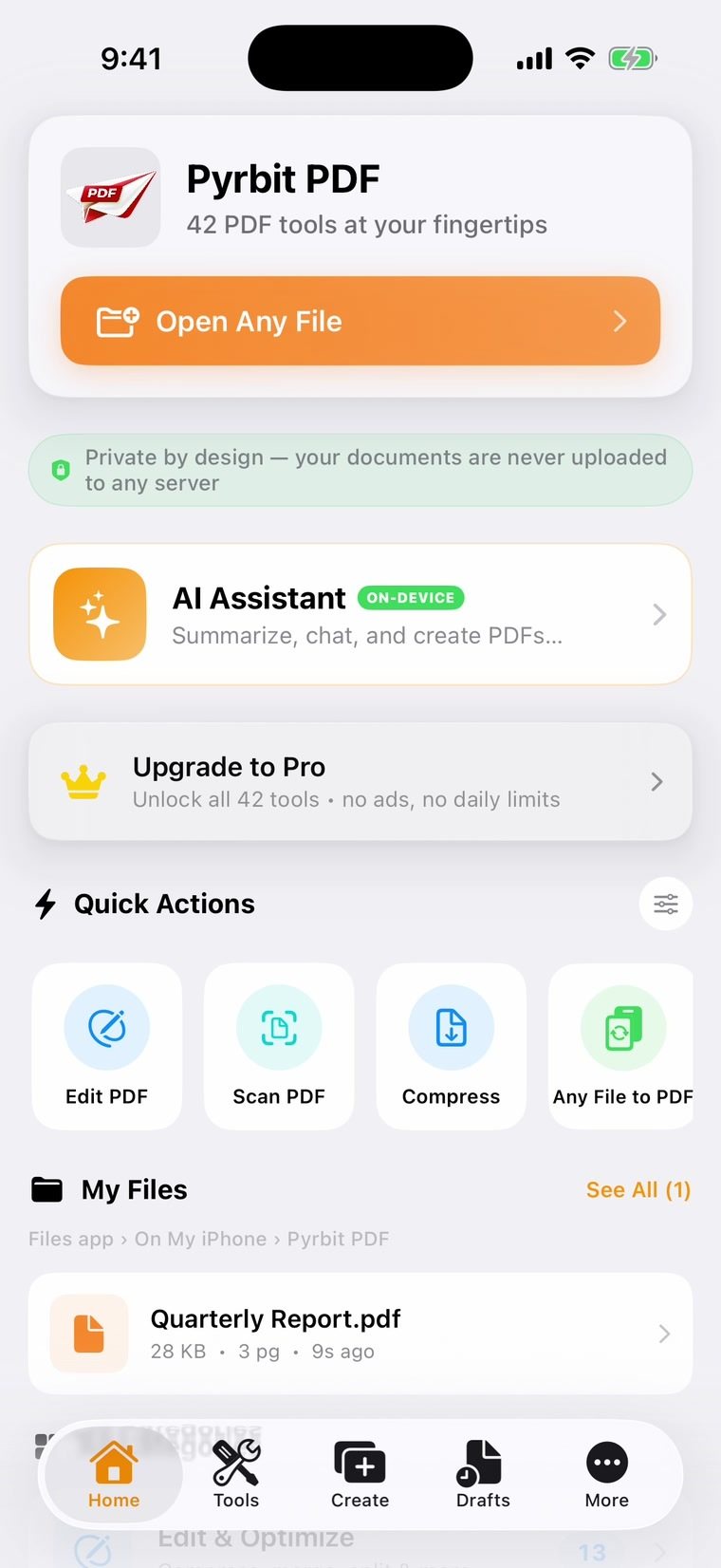
Pyrbit PDF puts 40+ professional PDF tools on iPhone, iPad, Mac, Android and ChromebookAndroid phones, tablets and Chromebook — and on iPhone, iPad and Mac. Your documents are processed on the device in your hand and are never uploaded — and the same tools run in your web browser at pdf.pyrbit.com.
Free on phones and tablets · Paid on Mac · No account required · Other devices
Features
The PDF work you actually do, done properly.
Real editing, not just viewing. Change text in place, sign, scan, redact and convert — with the same app on your phone, tablet and computer.
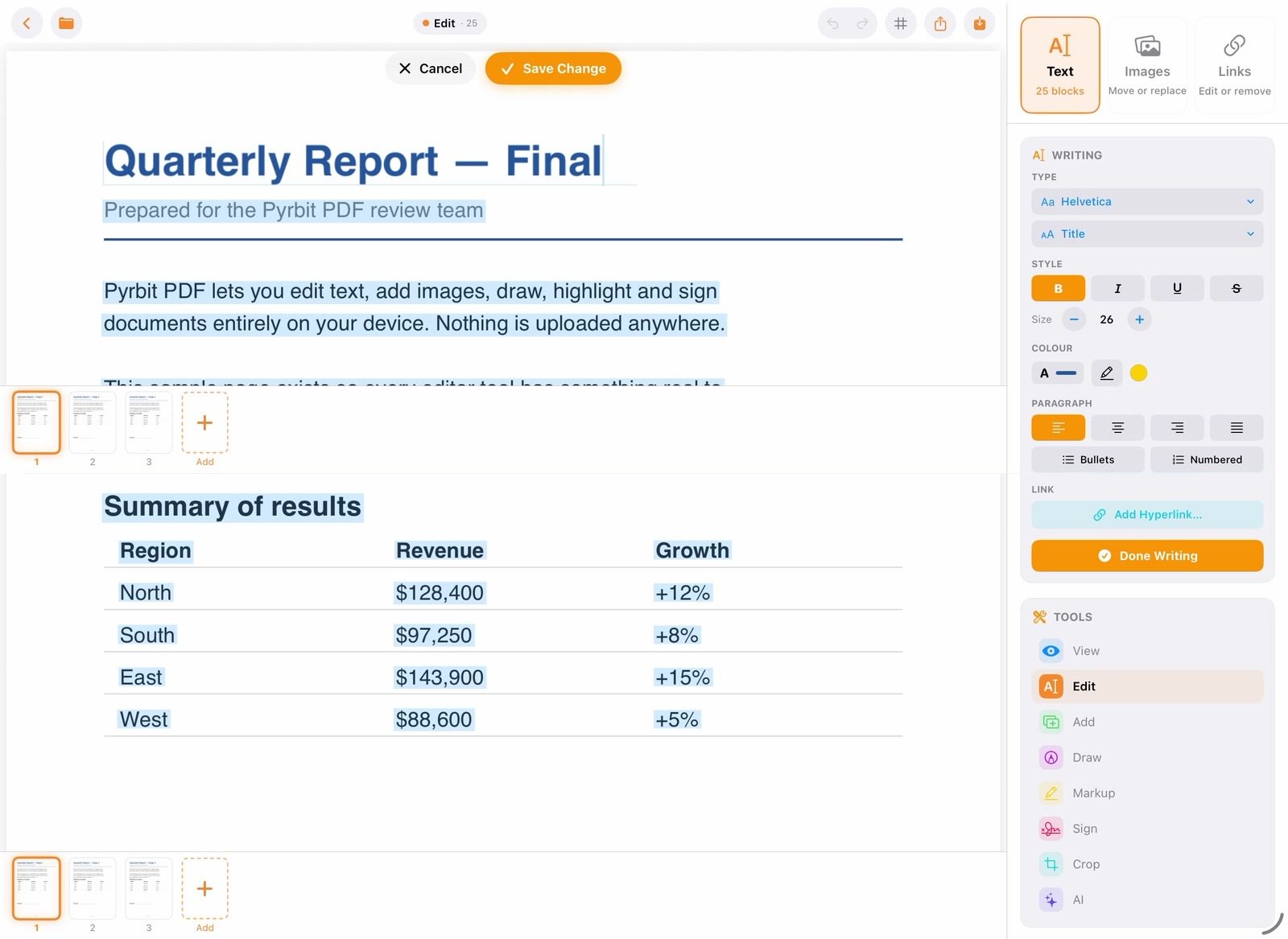
Edit text
Change the words in the document itself.
Tap a line and type. Fix a heading, update a date or correct a figure directly on the page — no converting to Word and back, and no retyping the whole file.
- Edit existing text, or add new text, images and links
- Font, size, bold, italic, colour and alignment controls
- Undo and redo every change
Scan
Turn paper into a clean, searchable PDF.
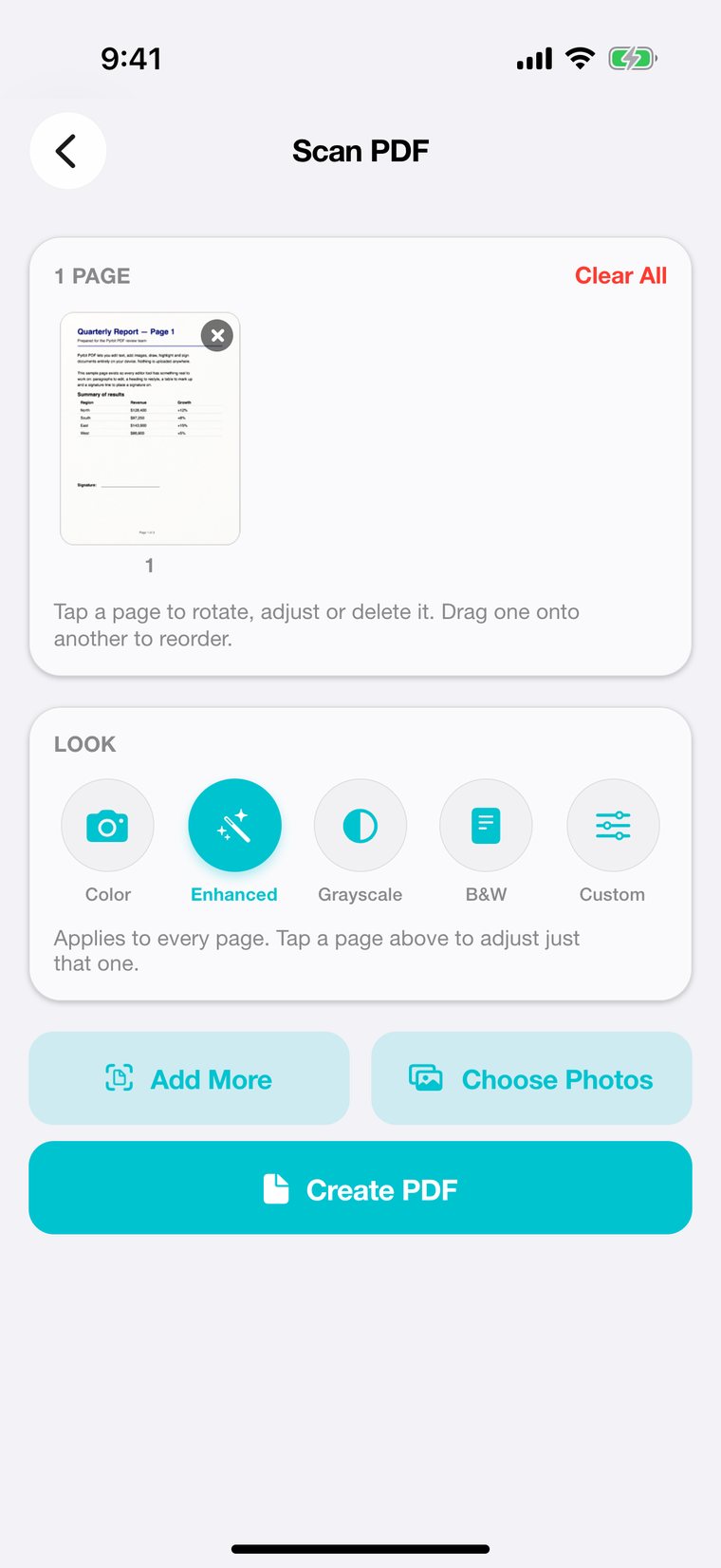
Point your camera at a document. Pyrbit PDF finds the edges, straightens the page and cleans it up, then builds a PDF you can search and copy text from.
- Automatic edge detection and perspective correction
- Color, Enhanced, Grayscale and B&W looks
- Multi-page scans with reordering and OCR
Sign
Sign contracts without printing them.
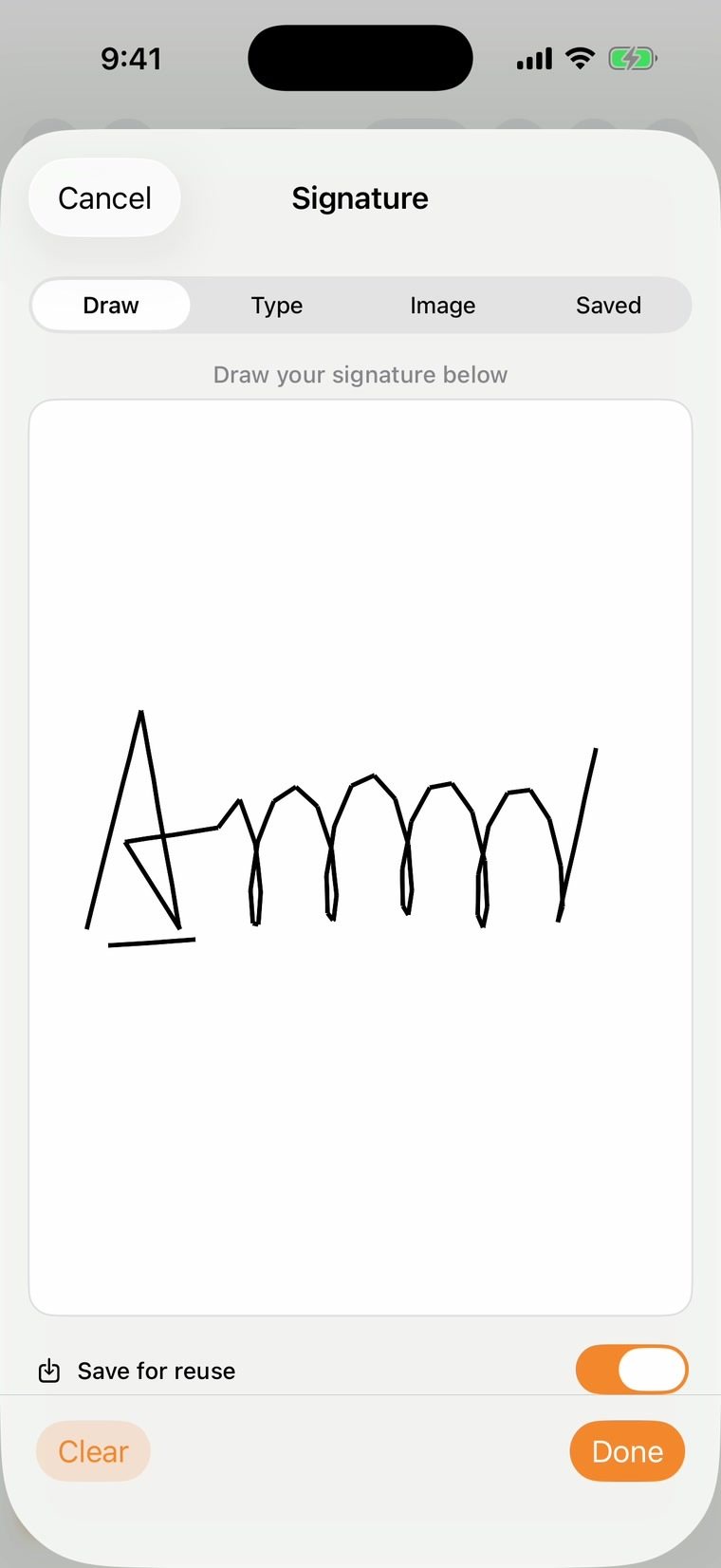
Draw your signature with a finger or trackpad, type it, or use an image. Save it once and place it on any document in a couple of taps.
- Draw, type or import your signature
- Resize, rotate and position it on the page
- Fill and create forms, and verify signed PDFs
Redact & mark up
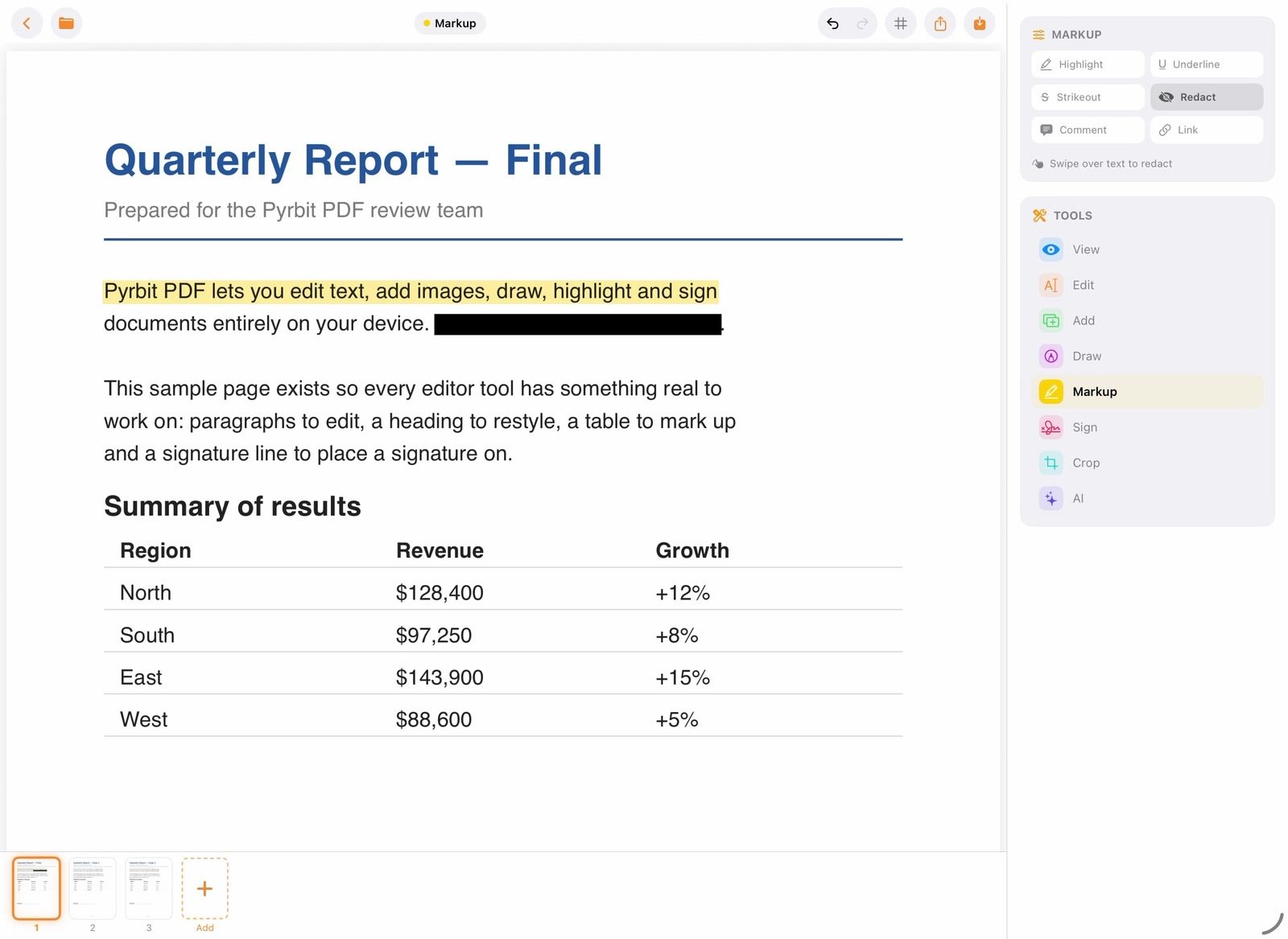
Permanently black out sensitive text. Highlight, underline, strike out and comment.
Password protect
Encrypt PDFs and control printing, copying and editing permissions.
Organize pages
Drag to reorder, rotate, delete, insert, split, merge and add page numbers.
Convert anything
PDF to Word, images, text and HTML. Word, Excel, Pages and images to PDF.
Tools
40+ tools, one app.
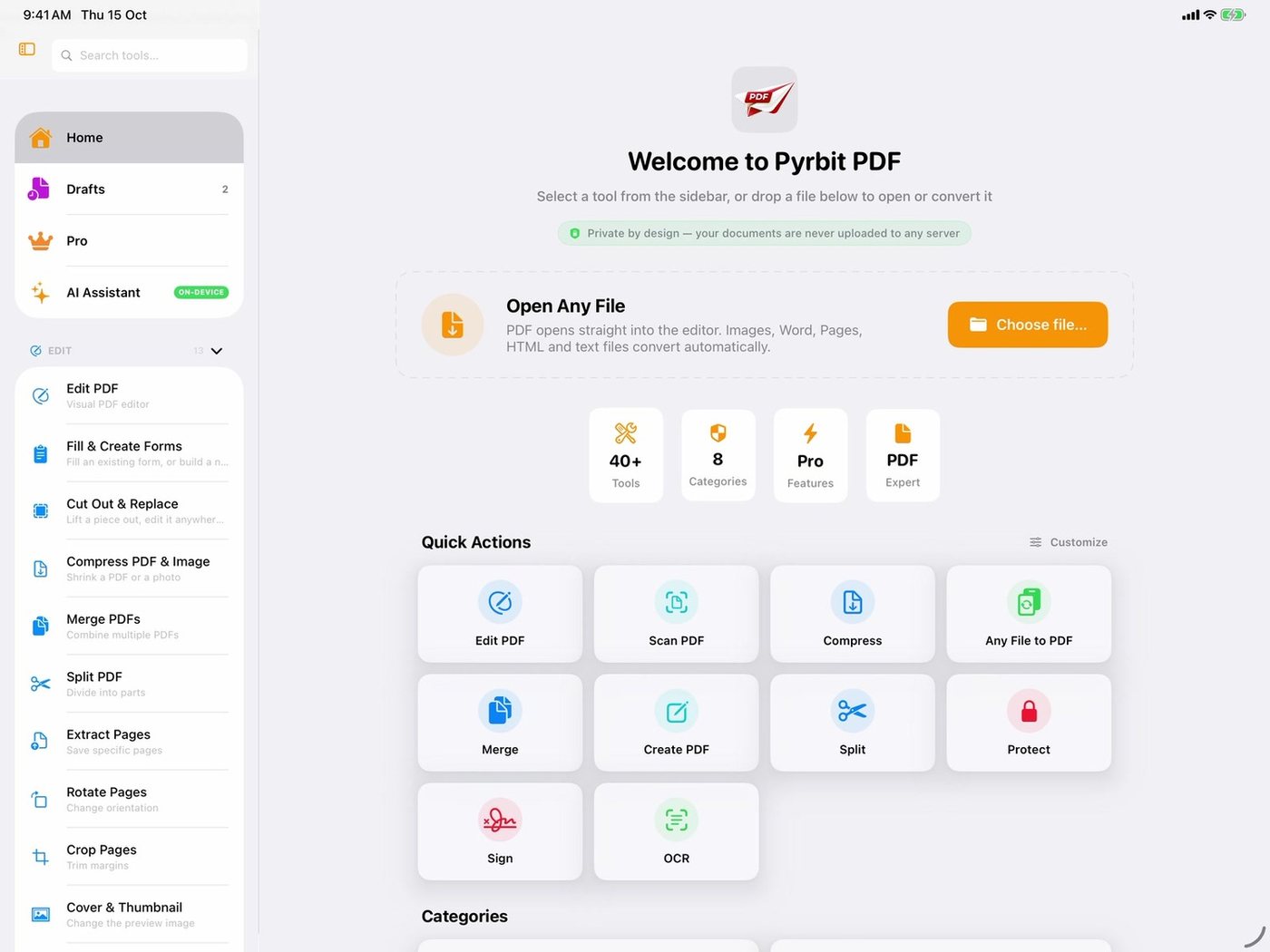
Every tool explained. Click one to see what it does, or search for the job you need to get done.
Edit & Optimize
13
Edit PDF
Edit the existing text, images and links in a PDF, right where they sit.
Edit a PDF on your phone or tablet the way you would on a computer. You can change existing text in the document's own font, move, replace or remove images, edit links, add new text, images and pages, draw shapes, highlight, underline, add comments and place your signature. Everything is processed on your device, with undo and redo along the way.
Fill & Create Forms
Fill in an existing PDF form, or build a new fillable form.
Fill in PDF forms by typing into text fields and ticking checkboxes, radio buttons and dropdowns, then save a completed copy. You can also create a fillable PDF form from a blank page or on top of an existing PDF, using ten field types: text, text area, number, email, date, checkbox, radio button, dropdown, signature and section header.
Cut Out & Replace
Lift a region out of a page, edit it, and put it back exactly.
Draw a box around any part of a PDF page or image and export that region as a high-resolution PNG. Edit it in any photo app, then put it back into exactly the same spot. You can also take a piece from another PDF or image and place it into the box you drew. Works on the device, with undo.
Compress PDF & Image
Shrink a PDF or a photo to a smaller file size.
Compress a PDF or an image in two ways. Smart mode reduces size while keeping quality as high as possible, and never makes the file bigger. Target Size mode aims for a size you pick: 100 KB, 500 KB, 1 MB, 2 MB, 5 MB or a custom value, useful for upload limits on forms and portals. An optional grayscale switch saves more space. Compression runs on your device.
Merge PDFs
Combine several PDF files into one document.
Merge multiple PDF files into a single PDF. Every page appears as a tile you can drag into any order, preview or delete, and you can reverse the order or reset it in one tap. Password-protected files are unlocked one at a time when you enter their passwords. On iPhone and iPad you can also compress the merged file.
Split PDF
Divide a PDF into several smaller files.
Split a PDF into separate files. Type the pages to split after, for example 5, 10, 20, or tap markers between page thumbnails, and each section becomes its own PDF. You can also split every N pages, such as one file per page or per two pages. A Remove Pages tab lets you drop unwanted pages and save the rest.
Extract Pages
Save chosen pages of a PDF as a new file.
Pull specific pages out of a PDF into a new document. Tap page thumbnails or type a range such as 1, 3, 5-7, or use quick selections for odd pages, even pages, the first or last half, or every Nth page. Pages can be rotated before you extract them, and the new PDF keeps them in their original order.
Rotate Pages
Turn PDF pages 90 or 180 degrees, one page or all.
Rotate PDF pages with a live preview. Turn the current page 90 degrees left, 90 degrees right or 180 degrees, or rotate every page at once, and reset any time. Each page can have its own rotation. Only the page orientation is changed, so text, images and quality stay exactly as they were.
Crop Pages
Trim the margins of PDF pages.
Crop a PDF by dragging the edges or corners of a crop box over the page preview. Apply one crop to every page, or turn that off and give each page its own crop, leaving untouched pages as they were. Useful for removing wide white margins, scanner borders or unwanted areas before printing or sharing.
Cover & Thumbnail
Change the preview image a PDF shows in file browsers.
A PDF's thumbnail is its first page, so this tool lets you choose what that first page is. Put a copy of any page at the front, or turn a photo into a new cover page sized like the document, fitted or filled. Applying again replaces the earlier cover, and Default removes a cover the tool added.
Optimize for Web
Re-save a PDF as a copy prepared for posting online.
Prepare a PDF for sharing on websites and by email in one tap, with no settings to adjust. The tool saves an optimized copy alongside your original, so nothing is lost if you prefer the first version. Results depend on the file; if you need a specific size limit, use Compress PDF with a target size instead.
Flatten PDF
Bake form fields, comments and signatures into the page.
Flatten a PDF so form entries, annotations, comments and stamps become a permanent part of the page and can no longer be edited or removed. Each page is converted to a high-resolution image, which makes the result look the same everywhere. Note that text in a flattened file is no longer selectable or searchable.
Grayscale
Convert a color PDF to black and white.
Turn a color PDF into grayscale in one tap, for printing on a black-and-white printer or for a cleaner, uniform look. Every page is converted, with no settings needed. Pages are re-rendered as high-resolution grayscale images, so text in the result is no longer selectable. Processing happens on your device.
Organize
9
Reorder Pages
Drag PDF pages into a new order.
Rearrange the pages of a PDF by dragging thumbnails in a filmstrip, or type the order you want, such as 3, 1, 2, 4. Moved pages show where they came from, you can undo and redo every step, and press-and-hold opens a large preview. Reset puts everything back. The new order is saved as a new PDF.
Delete Pages
Remove unwanted pages from a PDF.
Delete pages from a PDF by typing the page numbers you want gone, using single pages and ranges such as 2, 4, 6-8. The tool shows how many pages the document has, and the result is saved as a new file so your original stays untouched. A quick way to drop blank pages, covers or pages with personal details.
Insert Pages
Add pages from another PDF or from images.
Insert pages into a PDF from another PDF, from your photos or from image files. New pages go in after the page you select, and you can drag pages to a different position or delete any of them before saving. Password-protected source PDFs can be added once you enter the password.
Duplicate Pages
Copy chosen pages, placing each copy after the original.
Duplicate pages in a PDF by typing the page numbers to copy, for example 1, 3, 5 or a range like 2-4. Each listed page gets one copy placed directly after the original, which is handy for forms you need twice or pages you want to mark up separately. The result is saved as a new PDF.
Reverse Pages
Flip the page order so the last page comes first.
Reverse the order of every page in a PDF in one tap, so the last page becomes the first. This is useful for documents scanned back to front, or printed from a scanner feeder in the wrong order. There are no settings to choose, and the reversed document is saved as a new file.
Combine Pages (N-up)
Print several PDF pages on one sheet.
Place multiple PDF pages on a single sheet, known as N-up. Choose 2, 4, 6, 9 or 16 pages per sheet, all pages on one sheet, or a custom number from 2 to 36. Pick A4, Letter, Legal, A3 or A5, set automatic, portrait or landscape orientation, adjust spacing and add thin borders. Pages stay sharp because they are not converted to images.
Page Numbers
Add page numbers to every page of a PDF.
Number the pages of a PDF in one step. Place numbers at the top or bottom, left, center or right, or tap anywhere on the page for a custom spot. Choose a style: 1, Page 1, 1 of N, Page 1 of N or – 1 –. Set the font size from 8 to 24 points and pick a color. Numbering starts at 1.
Bookmarks
Add clickable bookmarks for quick navigation in a PDF.
Create a bookmark outline so readers can jump to any section of a PDF. Bookmark the page you are viewing, and the title is filled in from the page text; you can also select text on the page to use as the title. Rename or delete entries, tap one to jump to it, and save the outline into the file.
Convert
8
Any File to PDF
Turn documents, text files and images into a PDF.
Convert many kinds of files to PDF on your device: photos (JPG, PNG, HEIC, WebP, TIFF and camera RAW), text and code files, and Office documents. On iPhone, iPad and Mac, Word, Excel, PowerPoint, Pages, Numbers, Keynote, RTF, HTML and EPUB files keep their layout. On Android, Word, Excel and PowerPoint files are converted as text. Choose A4, Letter or the source size.
Images to PDF
Convert one or more photos into a PDF.
Turn photos into a PDF in a few taps. Pick several images, then choose a page size: the original image size, A4, Letter, A5 or Legal. With a fixed size you can fit, fill or keep the original size, and add no, small, medium or large margins. A live preview shows the pages before you save. On iPhone and iPad you can reorder images.
PDF to Images
Export every PDF page as a JPG or PNG image.
Convert PDF pages to images. Choose PNG for lossless quality or JPG with a quality slider from 50 to 100 percent, and pick a resolution of 72, 150, 300 or 600 DPI, high enough for printing. Every page is exported; on iPhone and iPad they are saved to a folder, and on Android multi-page results come as one ZIP file.
PDF to Word
Save the text of a PDF as an editable Word-compatible file.
Get the text out of a PDF into a document you can edit in Microsoft Word, Pages or Google Docs. The tool saves the words page by page as an RTF file, which Word opens directly. It keeps the text, not the original layout, images or styling, so it works best for letters, reports and other text-heavy PDFs.
PDF to Text
Save all the text in a PDF as a .txt file.
Convert a PDF to a plain text file. The tool reads the text layer of the document and saves it as a UTF-8 .txt file you can share or save, ready for notes, search or other apps. It works with PDFs that contain real text; for scanned pages or photos of documents, use OCR instead.
PDF to HTML
Turn the text of a PDF into a simple web page.
Convert a PDF to an HTML web page. The text of each page is placed in its own section with a page heading, in a single self-contained HTML file that opens in any browser and can be edited or posted online. The conversion keeps the text and paragraph breaks, not the original fonts, images or exact positions.
Extract Text
Show the text of a PDF so you can copy it.
Pull the text out of a PDF and see it on screen, page by page, with a Copy button to paste it anywhere. You can also save or share it as a .txt file. This works on PDFs that contain real text; if a page is a scan or photo, the app tells you to use OCR instead.
OCR
Recognize text in scanned PDFs and photos.
Turn scanned PDFs and photos of documents into text with on-device OCR, so nothing is uploaded. Copy the recognized text or export it as plain text, a searchable PDF, Word, Markdown, CSV or JSON, plus HTML on iPhone and iPad. Android recognizes English and other Latin-script languages, Hindi, and, through a fallback, Chinese, Japanese and Korean.
Protect & Sign
7
Sign PDF
Draw, type or upload your signature and place it on a PDF.
Sign a PDF by drawing your signature with a finger or stylus, typing your name in one of eight handwriting-style fonts, or using a photo of your signature with background removal. Save signatures for reuse, then drag, pinch and rotate to place them on any page, as many times as needed. This adds a visual signature, not a certificate-based digital signature.
Redact
Permanently black out sensitive content in a PDF.
Hide private information for good. Draw boxes over anything you want covered, or search for words and mark every match, then pick black, white or gray. When you apply, each marked page is rebuilt as an image with the boxes burned in, so the hidden text cannot be copied or recovered. Pages you did not mark keep their selectable text.
Add Password
Lock a PDF with a password and set permissions.
Password-protect a PDF. Set an owner password, and optionally an open password that is needed to view the file. Choose a preset (Open, Restrict or Maximum) or switch individual permissions on and off: printing, high-quality printing, copying, editing, comments, form filling, page assembly and accessibility. Encryption is applied on your device; the file is never uploaded.
Remove Password
Unlock a protected PDF when you know its password.
Remove the password from a PDF you are allowed to open, so you do not have to type it every time. Enter the current password and the app saves an unlocked copy, leaving the original file as it was. This tool cannot crack or recover a forgotten password; it only removes protection when you already know it.
Verify Signature
Check whether a signed PDF has changed since it was signed.
Check the digital signature in a PDF. The app confirms whether the document was modified after signing and shows the signer's name, certificate issuer, validity dates and signing time. You can mark certificates from people you know as trusted. This screen also lets you create your own signing certificate on the device and sign PDFs with it.
Aadhaar Digital Signature
Verify signed e-Aadhaar PDFs and sign with your own certificate.
Check whether the digital signature in an e-Aadhaar or other government or bank PDF is intact, offline and on the device. The app checks the signature against Indian CCA root certificates and shows it on the page, as desktop PDF readers do. On Android you can also add your own signature with a .pfx or .p12 certificate. This is not UIDAI Aadhaar eSign, and it needs no Aadhaar number or OTP. How Aadhaar signature verification works
Metadata
View and edit a PDF's title, author, subject and keywords.
See and change the document information stored inside a PDF: title, author, subject and keywords. Good metadata makes files easier to find in search and shows a proper title when the PDF is opened in a browser or reader. The app shows the current values first; fields you leave empty keep their existing value.
Create
4
Scan PDF
Scan paper documents to PDF with your camera.
Scan documents with your camera. The app finds the page edges, crops and straightens the page, and can capture automatically. Scan several pages, reorder, rotate or delete them, and apply a filter such as Enhanced, Grayscale or Black & White, or adjust it yourself. You can also import existing photos. Scans are processed on your device and nothing is uploaded.
Create New PDF
Start a blank PDF and write, draw and sign in it.
Create a new PDF from scratch. Choose a page size (A4, Letter, Legal, A3 or A5), portrait or landscape, and from 1 to 50 pages, then the blank document opens in the full editor, where you can type, add images, draw and sign. A simple way to make a note, letter or form without starting from another file.
Create from Images
Build a PDF from your photos with a preview step.
Make a PDF from photos. Choose the original image size or a fixed page size (A4, Letter, A5 or Legal), then set how images fit and how wide the margins are. Reorder images by dragging or with the arrow buttons, remove any you do not want, and check the preview before saving or sharing your new PDF.
Create from Text
Type or paste text and save it as a PDF.
Turn plain text into a PDF. Add an optional title, type or paste your text, and choose a font size from 8 to 36 points. The app lays the text out on pages with margins, adding new pages as needed, and saves a clean PDF you can share or print. Handy for notes, letters and simple documents.
Annotate
3
Add Text
Place your own text anywhere on a PDF page.
Add text to a PDF page. Type your text, then choose a font such as Helvetica, Times or Courier, a size from 8 to 72 points and one of seven colors. Set the page and position; on Android you can also tap the page to place it. The text becomes part of the page, useful for filling in forms that have no fields.
Highlight
Highlight, underline or strike through text in a PDF.
Mark up a PDF by highlighting, underlining or striking through text. Drag across words on the page, or search for a word and mark every match at once. Pick from seven colors including yellow, green, blue and pink. All marks build up in one copy of the file so you can keep going across several pages.
Watermark
Stamp text or a logo across PDF pages.
Add a watermark to a PDF. Use text, such as CONFIDENTIAL or your name, in any of six colors and sizes from 20 to 120 points, or use an image like a logo. Set the opacity, place from one to nine copies per page, put it in front of or behind the content, and apply it to all pages or a range.
Advanced
2
Compare PDFs
Find the differences between two PDF documents.
Compare two PDFs side by side with synced page scrolling. Choose what to check: text content, to see which pages changed and how similar the files are; a visual comparison of the rendered pages; basic metadata such as page count and size; or a byte-for-byte check. You can copy the comparison report as text.
Batch Process
Run one operation on many PDF files at once.
Process many PDFs in one go. Pick files or a folder, then choose one of eight operations: compress, grayscale, watermark, flatten, optimize, rotate, add page numbers or extract text. Set the options once, and the results are saved to a new folder next to the originals, so your source files stay unchanged.
Info & Viewer
2
View PDF
Open and read a PDF with smooth scrolling and zoom.
Open any PDF and read it in a clean viewer with continuous vertical scrolling and pinch to zoom. It is a quick, read-only way to check a document before you edit, sign or share it, and it works offline because everything stays on your device. Password-protected PDFs open after you enter the password.
PDF Info
See a PDF's size, pages, version, security and properties.
Look up the details of a PDF: file size, number of pages, page size in points and inches, PDF version, title, author, subject, keywords and creator. It also shows whether the file is encrypted and which actions are allowed, such as printing, copying, commenting and form filling. Useful before you submit or share a document.
Platform extras
3
AI Assistant iPhone, iPad & Mac
Ask questions about a PDF and draft documents with on-device AI.
Chat with an AI assistant that runs on Apple Intelligence on your iPhone, iPad or Mac, so nothing you type or attach is sent anywhere. It can summarize or explain a document, answer questions about it, draft and rewrite text, and, for PDFs you attach, compress, watermark, merge, password-protect them or build a fillable form. It is off until you turn it on.
Blank PDF Android
Create an empty PDF with the page size and count you choose.
Create a blank PDF document with a set number of empty pages, from 1 up to 500, in A4, Letter, Legal, A3 or A5 size, in portrait orientation. Use it as a starting point for notes, printing or adding content later with the other tools. On iPhone and iPad, Create New PDF covers this.
Remove Watermark Android
Detect and remove repeated watermarks from a PDF.
Remove watermarks from a PDF. Smart Scan finds marks that repeat across pages, such as rotated or faded text, faint images and stamp annotations, and removes them without turning the page into an image. You can also tap a mark to target it, or paint over marks baked into scanned pages. Apply to all pages or a range, with undo.
Click any tool to see what it does, or open each tool’s own page to use it on the web. AI features use Apple Intelligence on iPhone, iPad and Mac; the Android app doesn't include AI yet.
Privacy
Your documents stay on your device. Always.
Contracts, IDs, bank statements and medical records shouldn't pass through someone else's server. Pyrbit PDF does its work locally, so your files never leave the device you're holding.
Processed on device
Editing, scanning, OCR, conversion and compression all run locally.
No uploads
There is no cloud step. Files are only shared when you choose to share them.
Works offline
Open, edit and save documents on a plane, or anywhere without a connection.
No account needed
Use every tool as a guest. Signing in with Apple or Google is optional.
Private AI
On iPhone, iPad and Mac, AI features use Apple Intelligence on your device. Never a cloud service.
Your files, your choice
Save on your device or share to any app you choose. Nothing is synced behind your back.
Pricing
Free on phones and tablets. Paid on computers.
Every feature — including Aadhaar Digital Signature — is free on iPhone, iPad, Android phones, Android tablets and Chromebook. The Mac app is paid.
Phones & tablets
Free — every feature
- All 40+ tools: edit, sign, scan, convert, redact, protect and more
- Aadhaar Digital Signature included
- Supported by ads — some tools unlock after a short video; optional Pro removes ads
- The same privacy: files never leave your device
Desktop
Paid desktop app
- Full desktop layout with sidebar and keyboard shortcuts
- AI features with Apple Intelligence on your Mac
- Every tool, no ads
On the web at pdf.pyrbit.com, a Google account gives you one free document every 24 hours with any tool; Pyrbit Pro (₹79/month or ₹599/year) gives unlimited use with no ads. In the apps, prices are shown in your local currency before you buy. On phones and tablets, the optional Pro plan renews automatically and can be cancelled anytime in your App Store or Google Play account.
Download
Get Pyrbit PDF for your device.
Choose your platform below.
iPhone & iPad
Requires iOS or iPadOS 17 or later. AI features use Apple Intelligence on supported devices. One purchase covers all your Apple devices.
 Scan with your phone
Mac
Requires macOS 14 Sonoma or later. AI features use Apple Intelligence on supported Macs. Full desktop layout with sidebar and shortcuts.
Android phone
Requires Android 8.0 or later on an ARM device — almost every phone.
 Scan with your phone
Android tablet
Requires Android 8.0 or later on an ARM device. Uses a sidebar layout on larger screens.
Scan with your phoneChromebook
For Chromebooks with Google Play. Desktop layout with sidebar, keyboard and mouse support. Free, every feature.
Web browser
Nothing to install — works in a modern browser on any computer, tablet or phone. Files are processed in your browser and never uploaded.
FAQ
Questions, answered.
Is Pyrbit PDF free?
On phones and tablets, yes — every feature is free on iPhone, iPad, Android phones, Android tablets and Chromebook, including Aadhaar Digital Signature. The free app is supported by ads; an optional Pro plan removes them. The Mac app is paid. In a web browser, a Google account gives you one free document every 24 hours with any tool; Pyrbit Pro (₹79/month or ₹599/year) gives unlimited use with no ads.
Are my documents uploaded anywhere?
No. Pyrbit PDF processes your files on your device — in the apps, and in your browser on the web. There is no cloud processing step, and documents are only shared when you choose to share or export them.
Does it work without an internet connection?
The apps do. Editing, signing, scanning, converting and every other tool work offline. A connection is only used for things like loading store prices, optional sign-in and showing ads in the free version. The web version needs a connection to load and to sign in.
Can I really edit the existing text in a PDF?
Yes. Choose Edit, tap a line of text and type. You can also add new text, images and links, and undo any change.
Is redaction permanent?
Yes. Redacted text is removed from the document, not just covered with a black box, so it can't be recovered by copying or selecting.
Does one Pro purchase work on all my devices?
On Apple devices, one Pro plan covers your iPhone, iPad and Mac with the same Apple ID. On Android and Chromebook, Pro is tied to your Google Play account.
Which versions include AI?
On iPhone, iPad and Mac, Pyrbit PDF's AI features use Apple Intelligence, which runs on your device (on devices that support Apple Intelligence). The Android app doesn't include AI features yet.
Can I download the iPhone or iPad app from this website?
No. iPhone and iPad can only install apps from the App Store, so Pyrbit PDF for iPhone and iPad is available there. On Mac, get it from the Mac App Store. On Android you can choose between Google Play and a direct download from this website.
Should I download the APK or use Google Play?
They're the same app, signed by Pyrbit. Google Play installs and updates it for you. The APK is a direct download from this website — handy if you don't use Google Play; Android will ask you to allow installs from your browser, and you update by downloading the newer APK. The two can't be installed over each other, so uninstall one before switching. The APK is for ARM devices, which covers almost every Android phone and tablet; on a Chromebook, use Google Play.
Which devices are supported?
iPhone and iPad with iOS or iPadOS 17 or later, Mac with macOS 14 or later, Android phones and tablets with Android 8.0 or later, and Chromebooks with Google Play — plus any computer, tablet or phone with a modern web browser at pdf.pyrbit.com.
Can I use Pyrbit PDF in a web browser?
Yes. Open pdf.pyrbit.com in a modern browser and sign in with a Google account. Your files are processed in the browser and never uploaded. You get one free document every 24 hours with any tool; Pyrbit Pro (₹79/month or ₹599/year) gives unlimited use with no ads.
How do I get help?
Email us at [email protected]. You can also send feedback from Settings inside the app.
Your PDFs. Your device.
Download Pyrbit PDF free and do your PDF work without sending your documents anywhere.